
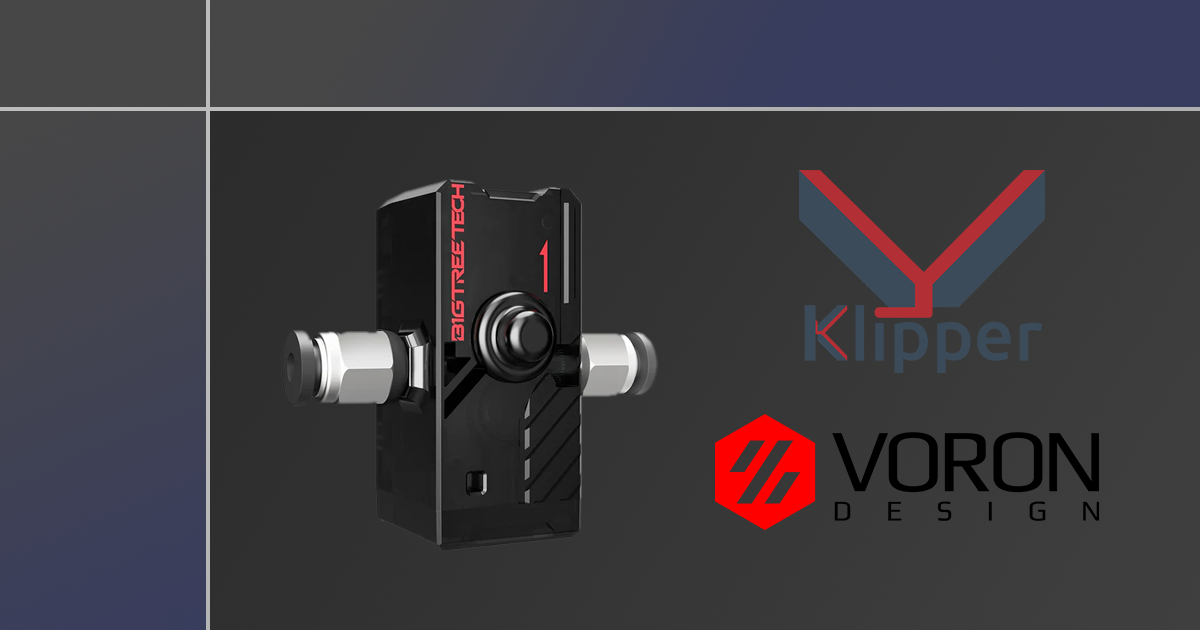
The BIGTREETECH SFS V2.0 is a great filament sensor that does more than detect whether or not there is filament in the printer. It integrates four major detection functions: nozzle clogging, filament runout, filament entanglement, and extruder faults. This allows for real-time status indication and monitoring.
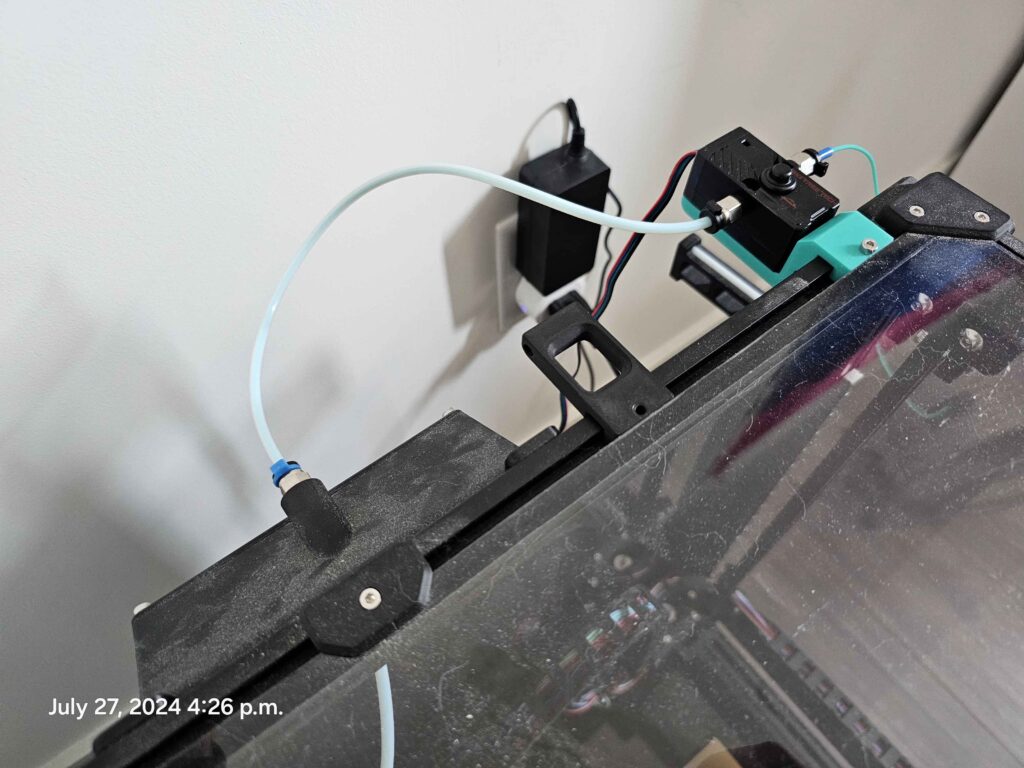
The SFS V2.0 is compatible with various firmware types such as Klipper, Marlin, and RepRap12 but we’ll be focusing on Klipper in this case. It features bidirectional feeding, which means there’s no need to distinguish between the inlet and outlet of the filament. This allows for convenient installation, and flexible placement on your printer. In my case, I simply replaced the original voron 2.4’s filament guide.
One of the standout features of the SFS V2.0 is its highly precise photoelectric sensor. The theoretical detection length is 2.88mm, which is more precise than its predecessor, but it is normally recommended to set it to something higher. If the SFS2.0 does not detect filament movement after the printer has extruded that amount of filament, this will cause it to pause. This is because there might be a jam, clog or something preventing flow.
Required materials
- PTFE tubing (optional – around 1m is the lower limit depending on your printer’s size but having spares is never a bad idea)
- It is HIGHLY recommended to have PTFE tubing runing between the sensor and the extruder to limit the amount of push/pull on the filament when the printer does large movements. You WILL experience issues if you print up to the corners of the bed.
- 1.2 meter of PTFE tubing
- 2 meters of PTFE tubing
- BTT SFS 2.0
- The manual can be found here on BitTreeTech’s github
- 3D printed holder for the BTT SFS2.0
Installation
SFS 2.0
To assemble the SFS2.0, you will need to take the fittings, slide on the rubber tubes on the filets and screw one on each side of the SFS. Some pressure will be required to screw the fittings on because of the rubber tubes, they should change shape and slide into place.
Print the SFS 2.0 holder mentionned above or any other holder of your choice and mount it to your printer. This holder simply mounts where the original filament guide was positioned, using the same M5 screw and nut.
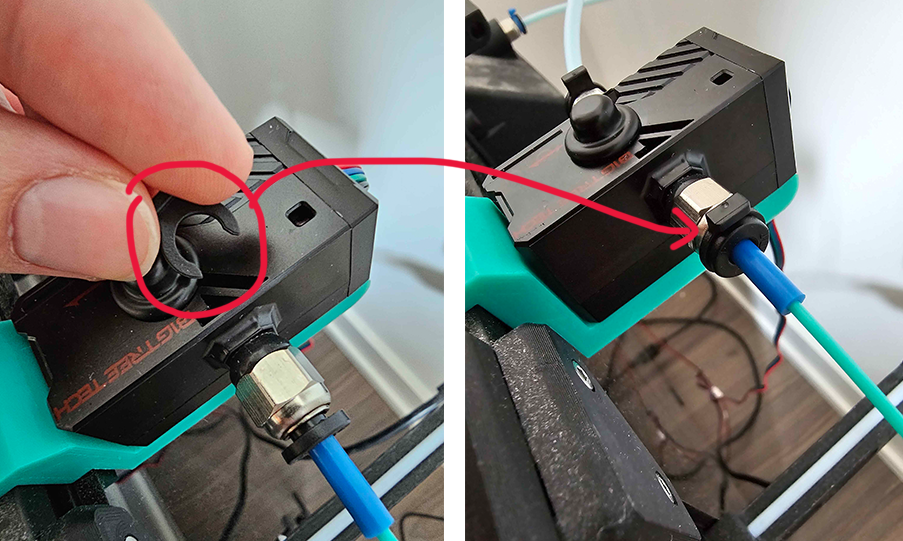
Install one of the included pieces of PTFE (blue tube) on the right side of the sensor (as shown below) by pressing down on the fitting’s black border and sliding the PTFE tube inside, as far as it will go. Do the same with the rest of the PTFE tube that goes all the way to the extruder (see section below).
Don’t forget to lock the PTFE tube into the holder by using the provided locking pins
PTFE Tube (Optional… ish)
It’s highly recommended to use a PTFE tube between the sensor and the extruder. It helps with controlling the amount of filament since it’s going to be limited to the length of the PTFE tube.
The printer used to run perfectly fine without one, but after that addition, the sensor has worked perfectly, even with less forgiving settings.

Configuration
This code has to be placed in your printer.cfg file and allows the sensor to work. Please note that not all sections are needed if you already configured some of the sections, but you might need to adapt it to your printer. This code was added to a pretty stock Voron 2.4r2. We’ll go through each section.
These can be added anywhere in the printer.cfg file, but I recommend grouping them. For example, creating a new section for the filament runout sensor’s code, grouping all macros together, etc. Examples will be given.
Information directly from Voron’s documentation was used, same thing for macros made by AndrewEllis93 on GitHub were used.
Sensor configuration
This allows the sensor to work. This code has been put in its own section to make everything easier to find if needed in the future.
#####################################################################
#   Filament Runout
#####################################################################

[filament_switch_sensor switch_sensor]
switch_pin: ^PG12
pause_on_runout: true
runout_gcode:
 PAUSE # [pause_resume] is required in printer.cfg
 M117 Filament switch runout
insert_gcode:
 M117 Filament switch inserted

[filament_motion_sensor encoder_sensor]
switch_pin: ^PG13
detection_length: 10 # accuracy of motion sensor 2.88mm by default
extruder: extruder
pause_on_runout: true
runout_gcode:
 PAUSE # [pause_resume] is required in printer.cfg
 M117 Filament encoder runout
insert_gcode:
 M117 Filament encoder inserted

[delayed_gcode DISABLEFILAMENTSENSOR] ; This will disable the SFS 1 second after klipper starts
initial_duration: 1
gcode:
    SET_FILAMENT_SENSOR SENSOR=encoder_sensor ENABLE=0

[gcode_macro SFS_ENABLE] ; Add this to PRINT_START to start the sensor right away
description: Enable smart filament sensor
gcode:
    M117 ENABLING the Smart Filament Sensor
    G92 E0
    SET_FILAMENT_SENSOR SENSOR=encoder_sensor ENABLE=1 ; Put your filament sensor's name after SENSOR=

[gcode_macro SFS_DISABLE] ; Add this to PRINT_END and PRINT_CANCEL to disable the sensor right away
description: Disable smart filament sensor
gcode:
    M117 DISABLING the Smart Filament Sensor
    G92 E0
    SET_FILAMENT_SENSOR SENSOR=encoder_sensor ENABLE=0 ; Put your filament sensor's name after SENSOR=
Explanations
The following explanation sections can be skipped if you know what you’re doing. You can always come back to it later for more info.
[filament_switch_sensor switch_sensor]
#####################################################################
#   Filament Runout
#####################################################################

[filament_switch_sensor switch_sensor]
switch_pin: ^PG12
pause_on_runout: true
runout_gcode:
 PAUSE # [pause_resume] is required in printer.cfg
 M117 Filament switch runout
insert_gcode:
 M117 Filament switch inserted

[filament_motion_sensor encoder_sensor]
switch_pin: ^PG13- [filament_switch_sensor switch_sensor]: This is the code section for the switch sensor which simply detects if filament is present in the sensor
- switch_pin ^PG12: This is the pin used for the switch sensor on an Octoput V1.1 (see image under previous section “Connecting to the board“.
- pause_on_runout: true: This is an important one, set it to true to pause the printer when the filament runs out or “false” to not pause the printer.
- runout_gcode / inserted_gcode: This is the gcode that will be run when the filament runs out. PAUSE is a macro that will be configured later if you don’t already have a PAUSE macro. [pause_resume] is a section that you might already have, otherwise, it will be configured later.
[filament_motion_sensor encoder_sensor]
 M117 Filament switch inserted

[filament_motion_sensor encoder_sensor]
switch_pin: ^PG13
detection_length: 10 # accuracy of motion sensor 2.88mm by default
extruder: extruder
pause_on_runout: true
runout_gcode:
 PAUSE # [pause_resume] is required in printer.cfg
 M117 Filament encoder runout
insert_gcode:
 M117 Filament encoder inserted

[gcode_macro SFS_ENABLE] ; Add this to PRINT_START to start the sensor right away- [filament_motion_sensor encoder_sensor]: This is the encoder sensor of the BTT SFS 2.0 which detects the quantity of filament going through the sensor to figure out if there was a jam, clog or an issue with the print
- switch_pin: ^PG13: This is the pin used by the “Encoder“. See the end of the “Connecting to the board” section for explanations
- detection_length: 10: This is the accuracy value recommended by Voron’s documentation. A value that is set too low might lead to more false-positives (your printer will pause more often than necessary)
- pause_on_runout: true: This is an important one, set it to true to pause the printer when the filament runs out or “false” to not pause the printer.
- runout_gcode / inserted_gcode: This is the gcode that will be run when the filament runs out. PAUSE is a macro that will be configured later if you don’t already have a PAUSE macro. [pause_resume] is a section that you might already have, otherwise, it will be configured later.
[delayed_gcode DISABLEFILAMENTSENSOR]
 M117 Filament encoder inserted

[delayed_gcode DISABLEFILAMENTSENSOR] ; This will disable the SFS 1 second after klipper starts
initial_duration: 1
gcode:
    SET_FILAMENT_SENSOR SENSOR=encoder_sensor ENABLE=0

[gcode_macro SFS_ENABLE] ; Add this to PRINT_START to start the sensor right away- [delayed_gcode DISABLEFILAMENTSENSOR]: This delayed_gcode command allows us to automatically execute the following gcode 1 second after Klipper starts. This is needed since a lot of issues can arise from having the BTT SFS 2.0 enabled during the initial calibratio and purge line (if used on your printer).
- SET_FILAMENT_SENSOR SENSOR=encoder_sensor ENABLE=0: This disables the filament sensor
[gcode_macro SFS_ENABLE] and [gcode_macro SFS_DISABLE]
These are macros, if the macro’s name is called somewhere else in the config file (SFS_ENABLE or SFS_DISABLE), it will execute the gcode from that macro’s specific section.
[gcode_macro SFS_ENABLE] ; Add this to PRINT_START to start the sensor right away
description: Enable smart filament sensor
gcode:
    M117 ENABLING the Smart Filament Sensor
    G92 E0
    SET_FILAMENT_SENSOR SENSOR=encoder_sensor ENABLE=1 ; Put your filament sensor's name after SENSOR=

[gcode_macro SFS_DISABLE] ; Add this to PRINT_END and PRINT_CANCEL to disable the sensor right away
description: Disable smart filament sensor
gcode:
    M117 DISABLING the Smart Filament Sensor
    G92 E0
SET_FILAMENT_SENSOR SENSOR=encoder_sensor ENABLE=0 ; Put your filament sensor's name after SENSOR=- G92 E0: This will reset the position of E0 (the extruder) to 0mm. That way, the sensor can start measuring from zero. This is useful if you start all of your prints with a purge line, since that extrudes a lot of filament.
- SET_FILAMENT_SENSOR SENSOR=encoder_sensor ENABLE=1: This will enable the “encoder_sensor”
Pause and resume sections
Assuming you don’t already have a PAUSE and a RESUME macro, insert this code under your “Macros” section in Klipper or create one. Same thing for the “pause_resume” section which will allow those macros to function correctly.
#####################################################################
#   Macros
#####################################################################

[pause_resume]
recover_velocity: 50.
#   When capture/restore is enabled, the speed at which to return to
#   the captured position (in mm/s). Default is 50.0 mm/s.

[gcode_macro M600] ;Enables compatibility with default M600 filament change macro in some slicers
gcode:
    PAUSE  ; Calls the PAUSE macro

[gcode_macro PAUSE]
rename_existing: BASE_PAUSE
gcode:
    # Parameters
    {% set z = params.Z|default(10)|int %}                                                   ; z hop amount

    {% if printer['pause_resume'].is_paused|int == 0 %}
        SET_GCODE_VARIABLE MACRO=RESUME VARIABLE=zhop VALUE={z}                              ; set z hop variable for reference in resume macro
        SET_GCODE_VARIABLE MACRO=RESUME VARIABLE=etemp VALUE={printer['extruder'].target}    ; set hotend temp variable for reference in resume macro

        SET_FILAMENT_SENSOR SENSOR=encoder_sensor ENABLE=0                                  ; disable filament sensor
        SAVE_GCODE_STATE NAME=PAUSE                                                          ; save current print position for resume
        BASE_PAUSE                                                                           ; pause print
        {% if (printer.gcode_move.position.z + z) < printer.toolhead.axis_maximum.z %}       ; check that zhop doesn't exceed z max
            G91                                                                              ; relative positioning
            G1 Z{z} F900                                                                     ; raise Z up by z hop amount
        {% else %}
            { action_respond_info("Pause zhop exceeds maximum Z height.") }                  ; if z max is exceeded, show message and set zhop value for resume to 0
            SET_GCODE_VARIABLE MACRO=RESUME VARIABLE=zhop VALUE=0
        {% endif %}
        G90                                                                                  ; absolute positioning
        G1 X{printer.toolhead.axis_maximum.x/2} Y{printer.toolhead.axis_minimum.y+5} F6000   ; park toolhead at front center
        SAVE_GCODE_STATE NAME=PAUSEPARK                                                      ; save parked position in case toolhead is moved during the pause (otherwise the return zhop can error)
        M104 S0                                                                              ; turn off hotend
        SET_IDLE_TIMEOUT TIMEOUT=43200                                                       ; set timeout to 12 hours
    {% endif %}

[gcode_macro RESUME]
rename_existing: BASE_RESUME
variable_zhop: 0
variable_etemp: 0
gcode:
    # Parameters
    {% set e = params.E|default(2.5)|int %}

    {% if printer['pause_resume'].is_paused|int == 1 %}
        SET_FILAMENT_SENSOR SENSOR=encoder_sensor ENABLE=1                           ; enable filament sensor
        #RESETRGB                                                                    ; reset LCD color
        SET_IDLE_TIMEOUT TIMEOUT={printer.configfile.settings.idle_timeout.timeout}  ; set timeout back to configured value
        {% if etemp > 0 %}
            M109 S{etemp|int}                                                        ; wait for hotend to heat back up
        {% endif %}
        RESTORE_GCODE_STATE NAME=PAUSEPARK MOVE=1 MOVE_SPEED=100                     ; go back to parked position in case toolhead was moved during pause (otherwise the return zhop can error)
        G91                                                                          ; relative positioning
        M83                                                                          ; relative extruder positioning
        {% if printer[printer.toolhead.extruder].temperature >= printer.configfile.settings.extruder.min_extrude_temp %}
            G1 Z{zhop * -1} E{e} F900                                                ; prime nozzle by E, lower Z back down
        {% else %}
            G1 Z{zhop * -1} F900                                                     ; lower Z back down without priming (just in case we are testing the macro with cold hotend)
        {% endif %}
        RESTORE_GCODE_STATE NAME=PAUSE MOVE=1 MOVE_SPEED=60                          ; restore position
        BASE_RESUME                                                                  ; resume print
    {% endif %}
Explanations
The following explanation sections can be skipped if you know what you’re doing. You can always come back to it later for more info. The following macros were made by AndrewEllis93 on GitHub.
[pause_resume] and [gcode_macro M600]
[pause_resume]
recover_velocity: 50.
#   When capture/restore is enabled, the speed at which to return to
#   the captured position (in mm/s). Default is 50.0 mm/s.

[gcode_macro M600] ;Enables compatibility with default M600 filament change macro in some slicers
gcode:
PAUSE ; Calls the PAUSE macro- [pause_resume]: This section is required to enable Klipper to pause and resume prints. The PAUSE and RESUME macros will allow the pausing and resuming to be more reliable.
- [gcode_macro M600]: This simply launches the “PAUSE” macro to help with slicer compatibility
[gcode_macro PAUSE] and [gcode_macro RESUME]
More information can be found on AndrewEllis93’s GitHub page for those macros. They allow the print to pause and resume without hurdle.
Additions to your PRINT_END Macro
A line simply containing “SFS_DISABLE” needs to be added to your print cancellation macro (which should already be present on your printer if the Voron documentation was followed). This can be added pretty much anywhere in the macro. For example in my case:
[gcode_macro PRINT_END]
#   Use PRINT_END for the slicer ending script - please customise for your slicer of choice
gcode:
    # safe anti-stringing move coords
    {% set th = printer.toolhead %}
    {% set x_safe = th.position.x + 20 * (1 if th.axis_maximum.x - th.position.x > 20 else -1) %}
    {% set y_safe = th.position.y + 20 * (1 if th.axis_maximum.y - th.position.y > 20 else -1) %}
    {% set z_safe = [th.position.z + 2, th.axis_maximum.z]|min %}

    SFS_DISABLE

    SAVE_GCODE_STATE NAME=STATE_PRINT_END

    M400                           ; wait for buffer to clear
    G92 E0                         ; zero the extruder
    G1 E-5.0 F1800                 ; retract filament

    TURN_OFF_HEATERS

    G90                                      ; absolute positioning
    G0 X{x_safe} Y{y_safe} Z{z_safe} F20000  ; move nozzle to remove stringing
    G0 X{th.axis_maximum.x//2} Y{th.axis_maximum.y - 2} F3600  ; park nozzle at rear
    M107                                     ; turn off fan

    BED_MESH_CLEAR
    RESTORE_GCODE_STATE NAME=STATE_PRINT_END
    #Turn off Nevermore after 180s
    UPDATE_DELAYED_GCODE ID=filter_off DURATION=600
Additions to your PRINT_START Macro
A line simply containing “SFS_ENABLE” needs to be added to your print start macro (which should already be present on your printer if the Voron documentation was followed). This NEEDS to be added after the initial purge line if configured. For example in my case:
[gcode_macro PRINT_START]
#   Use PRINT_START for the slicer starting script - please customise for your slicer of choice
gcode:
    G32                            ; home all axes
    BED_MESH_CALIBRATE             ; bed mesh
    SET_FAN_SPEED FAN=Nevermore SPEED=1
    G90                            ; absolute positioning
    G1 Z20 F3000                   ; move nozzle away from bed
    G1 X10 Y10 Z0.5 F9000 ; Move to 10,10, 0.5
    G92 E0
    G1 X150 Y10 F1200 E30 ; Draw intro line
    SFS_ENABLE
All done
You should now have a working BTT SFS 2.0 filament sensor, with working macros to pause and resume your prints. If issues arise, you can try playing with the
It worked like a charm for me, thank you!
Bit of a late reply, but glad to know it helped someone! Being unable to find the entirety of that info in a single post was frustrating 🙂
Hi Don,
It worked quite fine. Thanks for your great explanation!
You’re welcome!
Don,
It states to “Put your filament sensor’s name after SENSOR=”. I have a “BTT SFS V2.0” sensor installed. Should I change the line to “SENSOR=BTT SFS V2.0”
Thx
Hi and sorry for the delay, since you only have one sensor, at least I assume, you should leave it as-is, simply leave “encoder_sensor” after SENSOR= and it should work.
That’s because that name has been configured under the header “[filament_motion_sensor encoder_sensor]” in the code, which means you would need to change that sensor’s name “encoder_sensor” everywhere for it to work. If simply using one sensor, it’s not worth the hassle!
Hopefully I was clear enough! 🙂